Basic Settings
The Basic Settings tab contains general phone channel configuration including recording options, call limits, and phone blocking rules.
General Settings
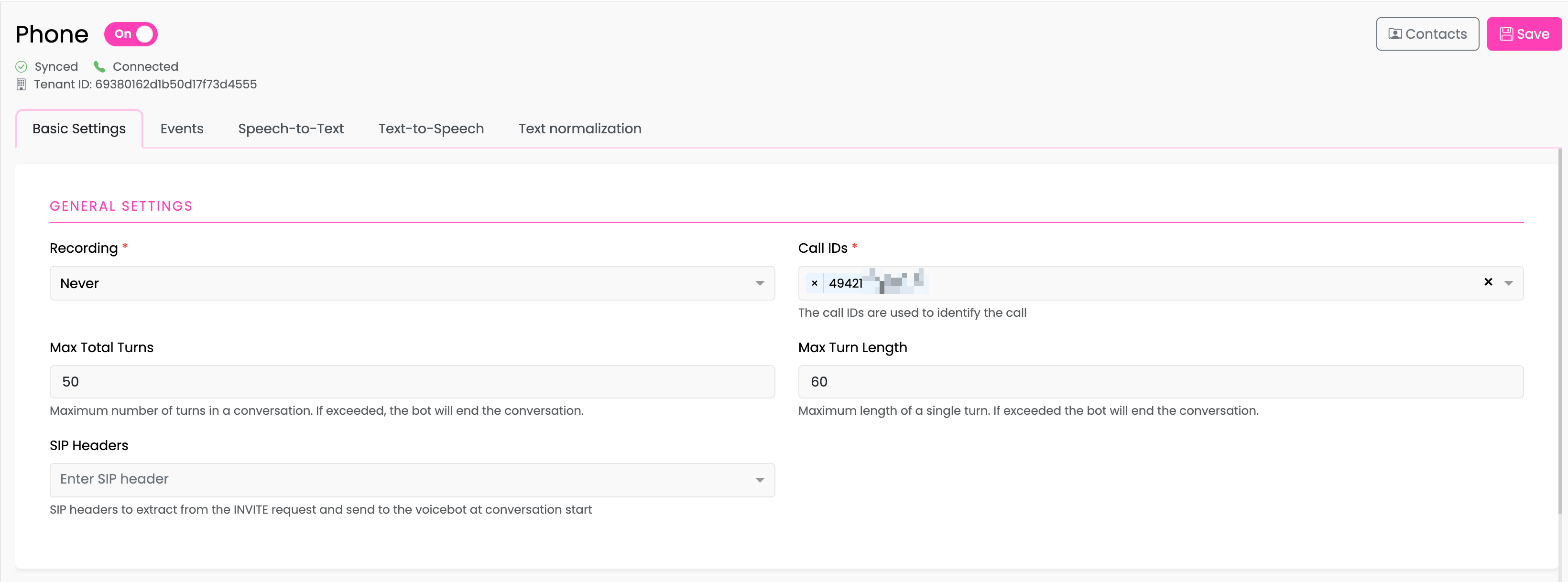
Recording
Controls whether the conversation between the caller and the bot is recorded.
| Option | Description |
|---|---|
| Never | The bot conversation is never recorded |
| When Requested | Recording can be enabled programmatically during the call using tracker_api.enable_recording() |
| Always | The bot conversation is always recorded automatically |
Recording after a Livechat Handover
This setting does not apply after the call has been handed over to a live agent with tracker_api.livechat_phone_handover(). Recording of the caller and the agent is configured separately, per handover, with the record_caller and record_agent parameters:
| Value | Description |
|---|---|
manual (default) | The agent can start and stop a recording from the Livechat during the call |
always | The whole conversation is recorded from the moment the agent answers |
never | The participant cannot be recorded, not even manually by the agent |
tracker_api.livechat_phone_handover(
    record_caller='never',
    record_agent='never',
)
Because the default is manual, agents can record handed-over calls even if Recording is set to Never. Pass never explicitly if handed-over calls must not be recorded.
Note: Recording settings may be subject to legal requirements in your jurisdiction. Ensure compliance with applicable laws regarding call recording and user consent.
Call IDs
Required field when phone channel is enabled.
Call IDs identify which phone lines route to this bot. Enter one or more phone numbers or identifiers that your phone system uses to route calls.
- Format depends on your phone system configuration
- Multiple Call IDs can be added to handle calls from different lines
Max Total Turns
Maximum number of conversation turns (user-bot exchanges) allowed in a single call. When exceeded, the bot will end the conversation.
- Default: 50 turns
- Use case: Prevent runaway conversations or abuse
Max Turn Length
Maximum length (in seconds) for a single turn. If a user speaks for longer than this limit, the bot will end the conversation.
- Default: 60 seconds
- Use case: Prevent very long monologues
SIP Headers
SIP headers to extract from the incoming INVITE request and pass to the voicebot at conversation start. These headers are available in your flows for routing or context.
- Enter header names without the
X-prefix - Headers will be available in the conversation metadata
Default Messages
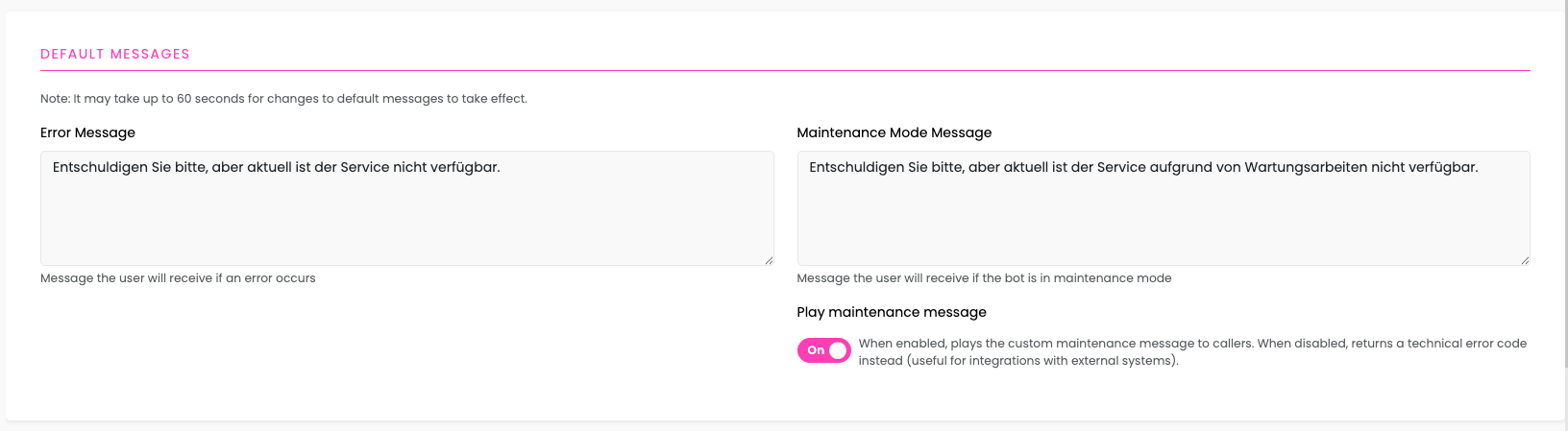
Configure the default messages that callers will hear in specific situations.
Error Message
Required field - Message played to callers when:
- A technical error occurs during the call
- A security hangup is performed
- The call was blocked by blocking rules
Enter a message that will be played using text-to-speech. This message should inform the caller that the service is temporarily unavailable.
Example: Entschuldigen Sie bitte, aber aktuell ist der Service nicht verfügbar. (Sorry, but the service is currently not available.)
Maintenance Mode Message
Message played to callers when the bot is in Maintenance Mode.
Enter a message that will be played using text-to-speech. This message should inform the caller that the service is undergoing maintenance.
Example: Entschuldigen Sie bitte, aber aktuell ist der Service aufgrund von Wartungsarbeiten nicht verfügbar. (Sorry, but the service is currently not available due to maintenance.)
Call Limit Reached Message
Message played to callers when your bot has reached its maximum number of simultaneous calls and cannot accept any additional ones right now.
Enter a message that will be played using text-to-speech, letting the caller know that all lines are currently busy and they should try again shortly.
Example: Alle unsere Leitungen sind derzeit belegt. Bitte versuchen Sie es in ein paar Minuten erneut. (All our lines are currently busy. Please try again in a few minutes.)
Note: The number of calls your bot can handle at the same time is configured separately for each environment, so it can be different from one environment to another. Contact your administrator if you'd like to know or change the limit for your environment.
Play Maintenance Message Toggle
Controls whether the maintenance mode message is played to callers or a technical error code is returned instead.
| State | Behavior |
|---|---|
| Enabled | Plays the custom maintenance message defined above to the caller |
| Disabled | Returns a SIP hangup cause code to the originating phone system instead of playing a message |
Technical Details (Disabled State)
When the toggle is disabled, the phone server terminates the call with a SIP hangup cause code instead of playing the maintenance message. This is useful for:
- Complex deployments where upstream systems (PBX, IVR, call routers) need to handle maintenance states programmatically
- Automated failover scenarios where the calling system should route the call elsewhere based on the hangup code
- Monitoring and alerting systems that track call disposition codes
The current implementation returns Hangup Cause 21 (CALL_REJECTED), which signals to the originating phone system that the call was intentionally rejected.
Important:
- The maintenance message is synced to the phone server when you click Save
- It may take up to 60 seconds for changes to become active after saving
- For more information about Maintenance Mode, see Bot Settings
Phone Blocking Settings
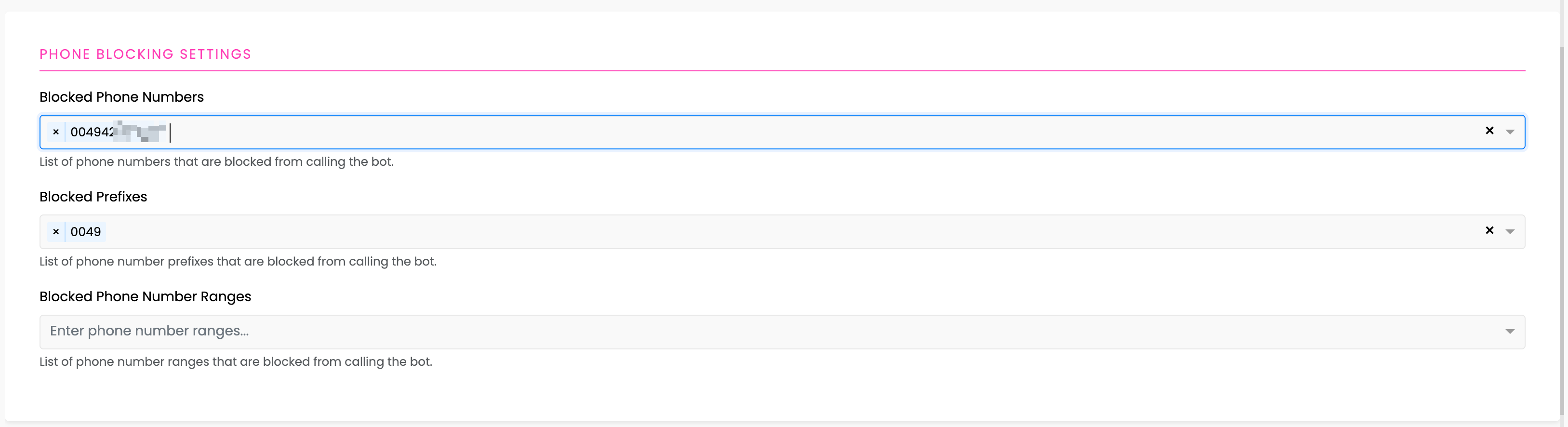
Phone blocking allows you to prevent specific callers from reaching your bot.
Note: The format of the phone numbers have to comply with the format the the connected phone server receives (e.g. leading 0049, +49, 49).
Blocked Phone Numbers
A list of specific phone numbers that are blocked from calling the bot.
- Enter complete phone numbers
- Calls from these numbers will be rejected
Example: +4912345678901
Blocked Prefixes
A list of phone number prefixes that are blocked. Any number starting with these prefixes will be rejected.
- Useful for blocking entire area codes or country codes
- Enter the prefix without wildcards
Example: 0049 blocks all numbers starting with 0049
Blocked Phone Number Ranges
A list of phone number ranges that are blocked. Numbers falling within these ranges will be rejected.
- Enter ranges in the format expected by your phone system
- Useful for blocking large blocks of numbers
Example: 4912345670000 - 4912345679999 blocks all numbers in this range
Monitoring
The monitoring feature allows you to send periodic status updates about your phone channel to an external monitoring endpoint. This is useful for health checks and operational monitoring.
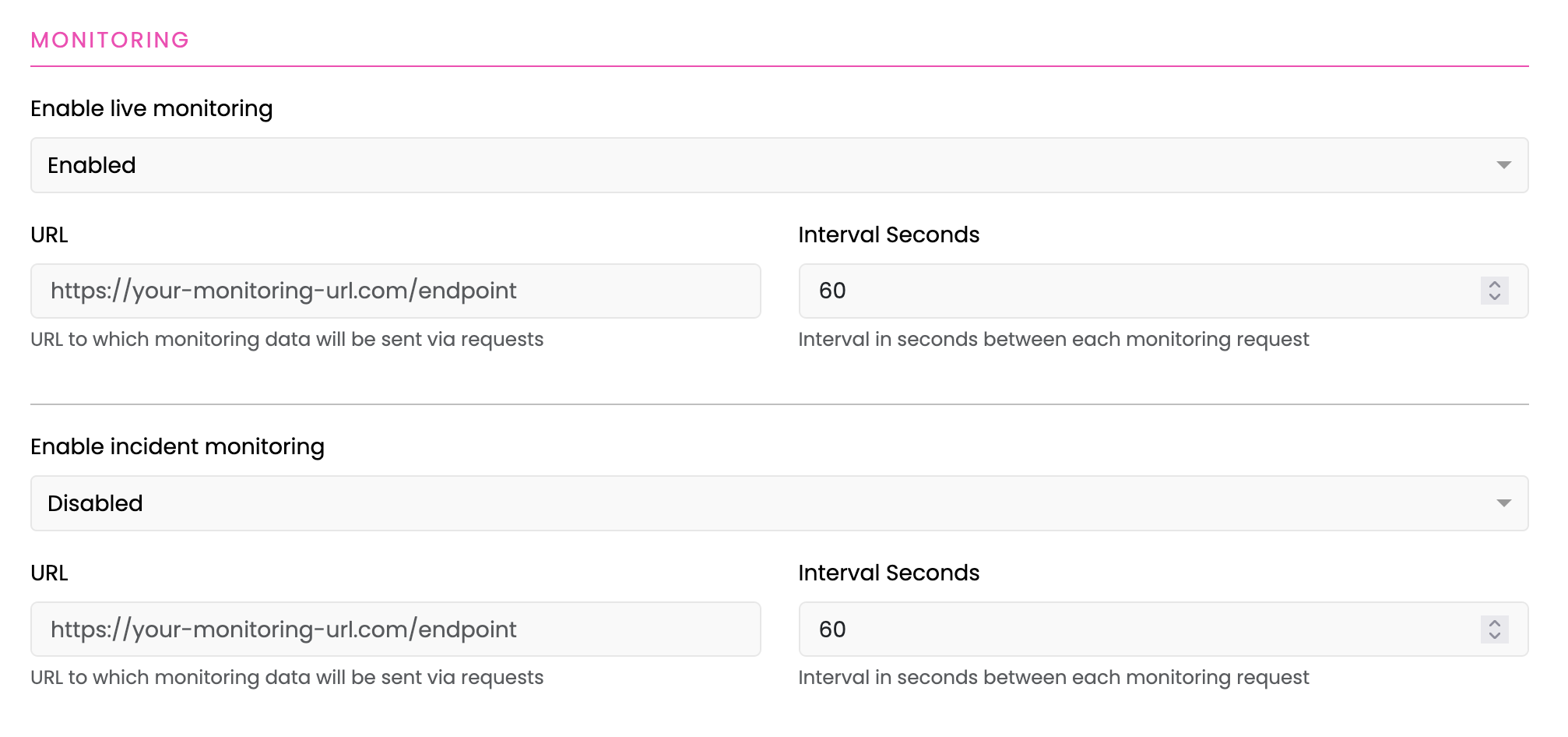
Enable Live Monitoring
Controls whether live monitoring data is periodically sent to an external endpoint.
| Option | Description |
|---|---|
| Enabled | Monitoring requests will be sent to the configured URL at the set interval |
| Disabled | No live monitoring data will be sent |
Live Monitoring URL
The HTTP(S) endpoint URL where live monitoring data will be sent via GET requests and sending status and msg as query parameters.
- Must be a valid HTTP or HTTPS URL
- Your endpoint should be prepared to handle periodic requests
Example: https://your-monitoring-url.com/endpoint
Live Monitoring Interval Seconds
The time interval (in seconds) between each live monitoring request.
Default: 60 seconds
Enable Incident Monitoring
Controls whether incident monitoring data is periodically sent to an external endpoint.
| Option | Description |
|---|---|
| Enabled | Incident monitoring requests will be sent to the configured URL at the set interval |
| Disabled | No incident monitoring data will be sent |
Incident Monitoring URL
The HTTP(S) endpoint URL where incident monitoring data will be sent via GET requests and sending status and msg as query parameters.
- Must be a valid HTTP or HTTPS URL
- Your endpoint should be prepared to handle periodic requests
Example: https://your-monitoring-url.com/endpoint
Incident Monitoring Interval Seconds
The time interval (in seconds) between each incident monitoring request.
Default: 60 seconds
Note:
- Each monitoring endpoint must be accessible from the phone server
- Failed monitoring requests will not retry but will be attempted again at the next interval
- Live and incident monitoring can be enabled independently of each other
Saving Changes
After configuring your settings:
- Click the Save button in the top right
- Wait for the sync status to show Synced
- Verify the Connected status is maintained
Note: Changes to phone blocking settings take effect immediately after sync completes.
Related Documentation
- Bot Settings - Configure maintenance mode and general bot settings
- Phone Events - Configure event flows
- Outbound Calls - Outbound call configuration (also in Basic Settings tab)
- Phone API Reference - Programmatic call control