Phone Channel
The Phone Channel enables your bot to interact with users through voice calls. It integrates Speech-to-Text (STT) for understanding spoken input and Text-to-Speech (TTS) for delivering spoken responses, creating a natural conversational experience over the phone.
Key Features
- Speech-to-Text (STT): Convert user speech to text using providers like Azure Speech Services, Google Speech-to-Text, or botario Speech
- Text-to-Speech (TTS): Convert bot responses to natural speech using providers like Google TTS, Azure TTS, ElevenLabs, or botario TTS
- Call Control: Manage calls with hangup, forward, and recording capabilities
- Text Normalization: Optimize bot responses for natural spoken output
- Outbound Calls: Initiate calls programmatically via API
- Phone Blocking: Block specific numbers, prefixes, or ranges
- DTMF Support: Accept touch-tone input for menu navigation
Prerequisites
Before enabling the Phone Channel, ensure you have:
- STT Provider configured - At least one Speech-to-Text provider set up in Provider Management
- TTS Provider configured - At least one Text-to-Speech provider set up in Provider Management
- PhoneServer connection - Your instance connected to a PhoneServer (shown in the header status)
- Start conversation flow - A flow assigned to handle incoming calls
Quick Start
Step 1: Create Speech Providers
Navigate to Provider Management and create at least one STT and one TTS provider:
- Click Create button
- Select Speech-to-Text or Text-to-Speech as Provider type
- Choose your provider (Azure, Google, ElevenLabs, or botario)
- Enter your API credentials
- Click Create
Then enable each provider for your bot under Settings > Enabled Providers.
See Speech-to-Text Configuration and Text-to-Speech Configuration for detailed setup.
Step 2: Enable Phone Channel
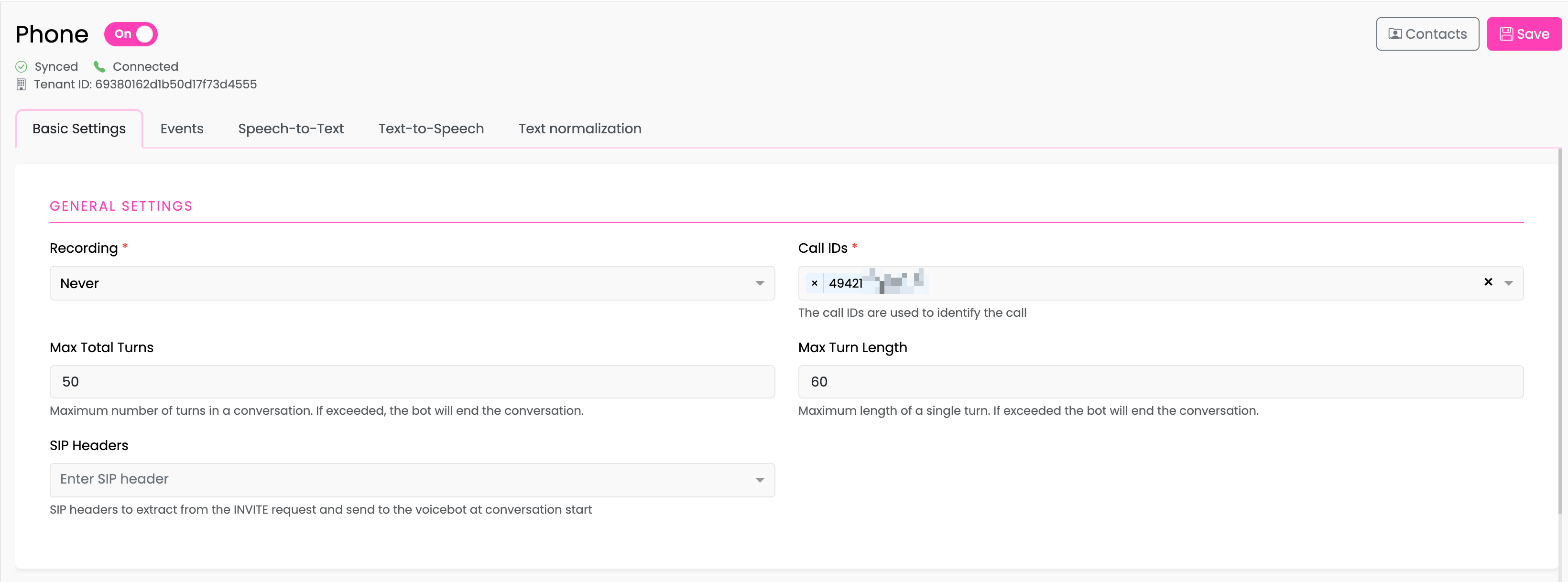
- Navigate to Channels > Phone
- Toggle the Phone switch to On
- Verify the connection status shows Synced and Connected
Step 3: Configure Basic Settings
In the Basic Settings tab:
- Set your Recording preference (Never, When Requested, or Always)
- Configure Call IDs to identify your phone line
- Optionally set Max Total Turns and Max Turn Length limits
See Basic Settings for all configuration options.
Step 4: Assign Event Flows
In the Events tab:
- Select a flow for Start conversation (required) - This flow runs when a call begins
- Optionally assign flows for other events (Empty message, Hangup, Error)
See Phone Events for details on each event type.
Step 5: Configure STT and TTS
- In the Speech-to-Text tab, select your STT provider and configure language settings
- In the Text-to-Speech tab, select your TTS provider and configure voice settings
Step 6: Save Configuration
Click Save to apply your phone channel configuration. The PhoneServer will sync with your settings.
Step 7: Test Before Going Live
Talk to your bot in the browser to confirm it answers and sounds right before real callers reach your number. See Test Call.
Status Indicators
The phone channel header displays important status information:
| Indicator | Meaning |
|---|---|
| Synced | Phone configuration is synchronized with the PhoneServer |
| Connected | PhoneServer is connected and ready to handle calls |
| Pending | Configuration changes are being synchronized |
| Failed | Sync failed - check provider configuration |
Documentation Sections
| Section | Description |
|---|---|
| Basic Settings | Recording, call limits, and phone blocking |
| Phone Events | Configure flows for phone call events |
| Test Call | Talk to your bot in the browser before going live |
| Speech-to-Text | STT provider setup and configuration |
| Text-to-Speech | TTS provider setup and configuration |
| Text Normalization | Optimize responses for spoken output |
| Outbound Calls | Initiate calls via API |
| PhoneServer Providers | Monitor provider sync status |
| Phone API Reference | Developer reference for phone methods |
Troubleshooting
Phone Channel Won't Enable
- Ensure at least one STT and one TTS provider are configured
- Check that providers are enabled for the bot in Settings > Enabled Providers
- Verify the Start conversation event has a flow assigned
Calls Not Connecting
- Check PhoneServer connection status (should show "Connected")
- Verify Call IDs are correctly configured
- Check that providers show "Synced" status
Poor Speech Recognition
- Try adjusting the Start Listening Offset in STT settings
- Consider enabling Dictation mode for longer utterances (Azure)
- Check language settings match your users' language
Unnatural Speech Output
- Enable Text Normalization for dates, numbers, and abbreviations
- Adjust Speaking Rate in TTS settings
- Try different TTS providers or voices for better quality