Development chat
The development chat lets you test and debug your bot from anywhere in the dashboard — no matter which page you’re on.
-
Accessing the Development Chat:
- You can access the development chat at any time, regardless of your current page. This ensures that you can always monitor and adjust your chatbot interactions as needed.
-
Viewing System Events:
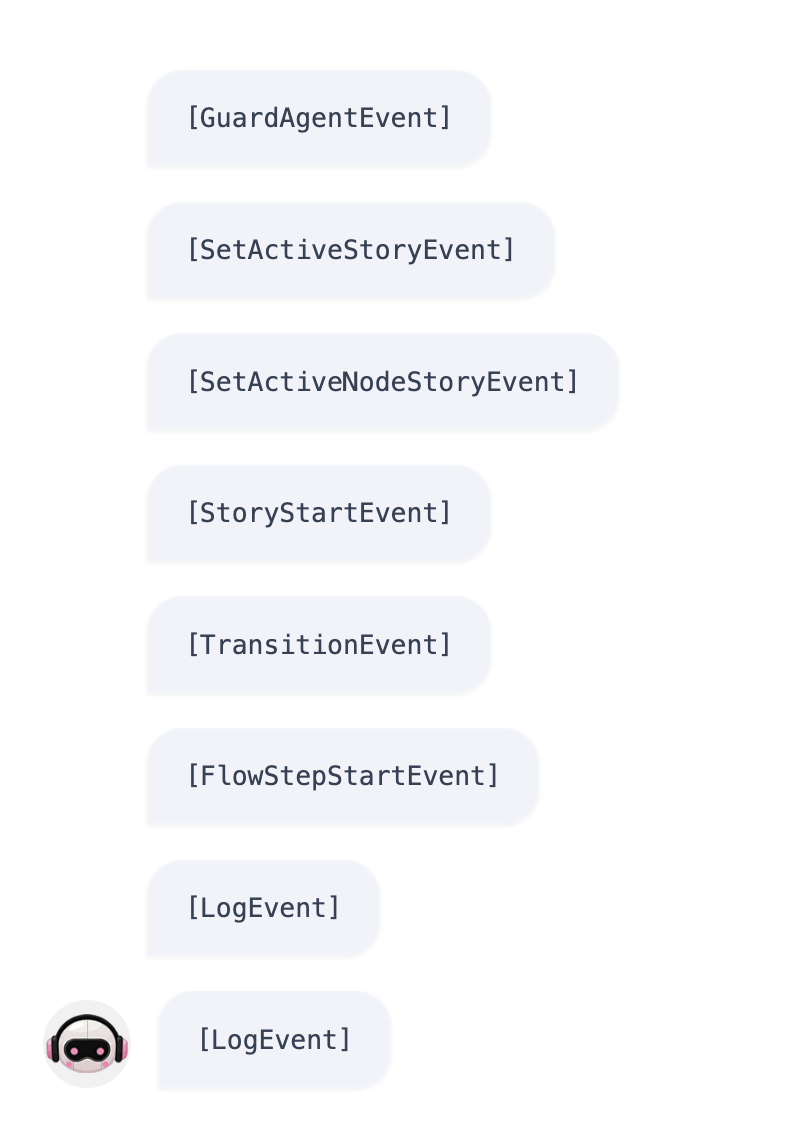
- The development chat displays background system events that are triggered during the conversation. This includes various actions and responses that occur as users interact with the bot.
- Each event is clickable, allowing you to view the associated code. This feature is useful for debugging and understanding how specific actions are handled by the bot.
- These are debug events intended for development and troubleshooting.
- For an overview of event types and implementation details, see the SDK documentation.
-
Starting a New Chat:
- To start a new chat session, simply refresh the chat interface by clicking on the refresh icon located in the upper right corner of the chat window. This action clears the current session and allows you to initiate a new conversation with the bot.
-
Apply changes:
- The Development Chat provides real-time notifications when a model needs to be redeployed.
-
Feedback:
- When feedback is enabled, you can test the feedback processing from the development chat to skip the processing delay of about 1 minute. This allows you to quickly verify that feedback is being handled correctly without waiting for the usual processing time.
By utilizing development chat, you can efficiently monitor system events, troubleshoot issues, and ensure that your chatbot performs as expected.